Common Blackboard Start-of-Semester Tasks
Request to Merge Multiple Sections
Submit a request that multiple course sections be merged into one course space. This is recommended if all of the course material and all of the assignments will be the same for all the sections. This request should be made before any assignments have been graded.
How to Add TAs or Graders
In any course space,
- In any course, go to Course Management (below the main course menu area), click on Users and Groups, and then click on Users.
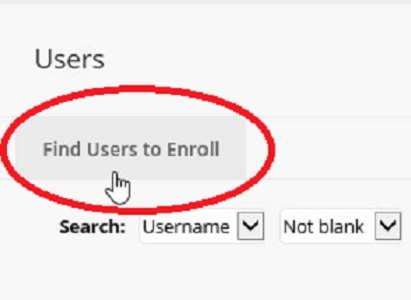
- On the next page, click on the phrase “Find Users to Enroll” (right under the word “Users”). Do not click anything in the “Search” field; click the link above that.

- Enter the username if you know it (just the first part of someone’s email address, e.g, “jsmith” not including the “@hamilton.edu”). If you know the username, you do not need to click the Browse button; just click Submit.
- If you don’t know the username, click the Browse button to search by last name in order to find the correct username.
- Select a role and then click Submit.
Copy or Move documents between areas or courses
Do you have some course documents from a previous semester’s course which you'd like to copy into this year’s course space? Did you change your mind about which folder you'd like a particular document to be in? Documents may be copied from one course to another or moved from one folder to another within the same course.
To move or copy one or a few documents:
Enter the course space which has the document you'd like to copy or move (remember, courses labeled unavailable or inactive can still be accessed by instructors).
- With Edit Mode on, go to the Content Area where your document or folder is located, click the “menu button” to the right of the content item and select Copy or Move from the menu.
- You will then see a page where you can choose the destination course from a drop-down list (same as the source course if moving between areas in the same course).
- Click the Browse button to select the area/folder from the Course Map to which to copy or move the document.
- Click Submit.
To copy a large number of documents from one course to another:
- In the Course Management area of the previous semester’s course, under Packages and Utilities, click Course Copy.
- Enter the Course Id of the new course (or click Browse to find it — this is not the title, but the dept-number-section code).
- Check which materials should be copied to the new course. You can just click the "Select All" button to copy all course material forward. Note: To copy assignments, you must select the Grade Center as well as the content area in which the assignment is deployed. To copy quizzes or tests, you must select the Grade Center, the content area in which the quiz or test is deployed, and the Test, Surveys and Pools option. To copy discussion boards, blogs, journals or wikis, you must copy the Grade Center if any of these items have the “Graded” option turned on. There is no need to copy enrollments; these are supplied automatically.
- Click Submit; depending on the size of the files, this may take a few minutes. You will receive a Confirmation message.
Using the Date Management Tool after Course Copy
After copying course material forward from a previous semester, you can adjust due dates using the Date Management tool. This tool is located in the Course Management area, under Course Tools. You can choose several different options to adjust all dates and then review them for accuracy. The tool will attempt to calculate new dates for any assignment or assessment with due dates and for any item with display after/until availability dates. You can then edit the dates of individual items if necessary. You can also filter your results and re-run the Date Management tool with different options. This tool is a real time-saver!
Last updated: June 2, 2023
Tags
Contact
Team Name
Research & Instructional Design
198 College Hill Road
Clinton, NY 13323
