Installing the Redirect Add-On in Thunderbird
Windows and Mac OS X
Installing Mail Redirect
- Open Thunderbird if it isn’t open already.
- Go to the Tools menu and select Extensions (Windows) or Add-ons (Mac OS X).
- In the window that opens, click on the gear icon in the upper right of the screen and from it select Install Add-On from File.
- In older versions of Thunderbird click on Install in the upper left corner.
- Browse to your Desktop and select the mail_redirect-… file you just downloaded and click Open.
| Windows |
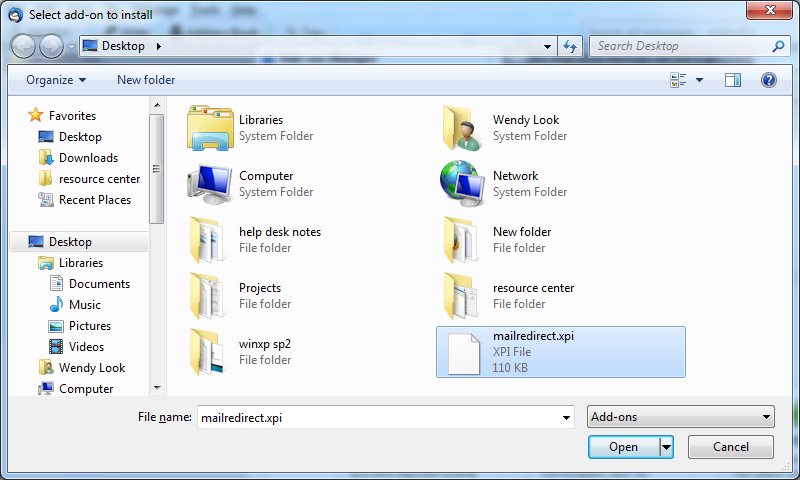 |
| Macintosh |
|
|

- Wait a few seconds and click on the Install Now button.
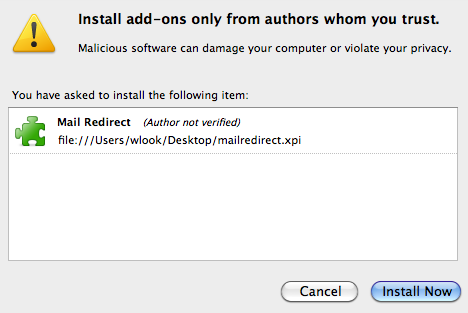
- Completely quit out of Thunderbird (close all Thunderbird windows) and reopen Thunderbird.
Adding the Redirect Button to the Toolbar
Go to the View menu, go to Toolbars, and click on Customize… Click and drag the Redirect button to wherever you want the button to be in the toolbar (e.g. next to the Forward button). Click OK to close the Customize Toolbar window.
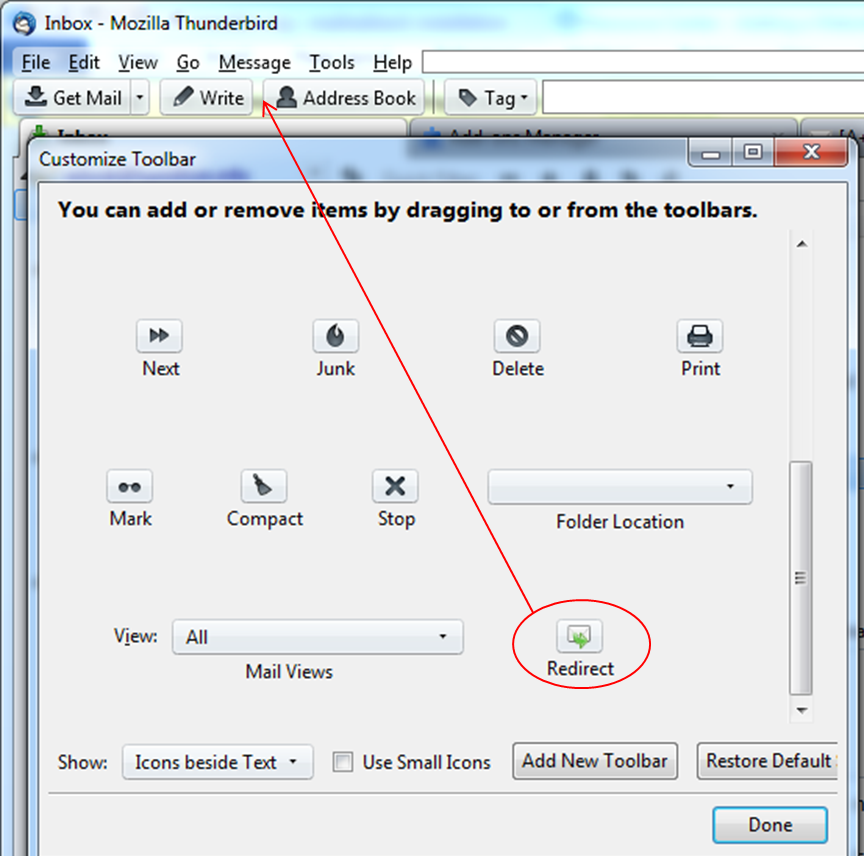
NOTE: This will add the button to the mailbox list toolbar only. If you want the button to appear in individual message windows when you open them, you should open a message in a new window and repeat the above process.
Using Mail Redirect
To redirect messages, highlight or open the message you would like to redirect. You can either use the keyboard shortcut for redirect (Ctrl + B for Windows, Apple + B for OS X), go to the Message menu and select Redirect, or click on the Redirect button if you set one up in your toolbar. In the window that opens, enter the address(es) you want to redirect the message to and click Redirect.

Comments
Last updated: December 1, 2022
Tags
Contact
Team Name
Help Desk
198 College Hill Road
Clinton, NY 13323
Fri 8 a.m. - 8 p.m.
Sat - Sun 10 a.m. - 10 p.m.

No comments yet.
Comment Guidelines
Please log in to post a comment