Accessing the Academic Server
For coursework requiring a shared storage location, there are two options. You may request a shared course folder on our “Academic” file server, or a Google Shared Drive. Both of these provide a common storage location for students and faculty to share files and data.
Academic Server Overview
The Academic Server provides storage for data related to coursework and research that faculty and their students share for a class, research project, or another academic pursuit.
- Individual student folders – Students have full access to their own folder
- Shared folder– Enrolled students have full read-write-execute access
- Data folder – Enrolled students can read and execute
- DropBox folder – Enrolled students can write only
Accessing Files using a Mac
From the main menu bar, select Go - Connect to Server.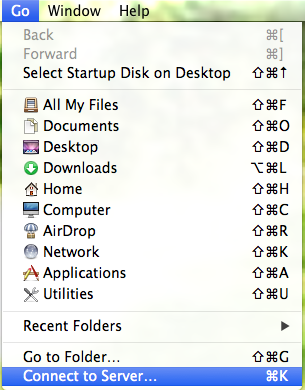
In the Connect to Server window, type academic in the Server Address field.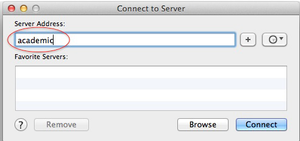 Click the Connect button.
If prompted, log in to Hamilton College's network: 
Use the following syntax for your username:
- Faculty/Employees: username@hamilton.edu
- Students: username@students.hamilton.edu
Use the same password you would use for MyHamilton or HillConnect email. Click Connect.
Select the desired folder and click the OK button.

Create a desktop alias to your AS folder
NOTE: This should be done on personal computers only. NEVER create a desktop alias to your AS folder on a public lab machine!
- You can add your AS folder to the sidebar on the left of your Finder window (the window you use to browse for files). Find your folder and click and drag it into the sidebar in that window. Simply click on the folder in the sidebar to access your AS folder. If you are not connected, it will prompt you for your username and password.
-
Two-finger click (or Ctrl-click) on your AS folder (the folder named with your username), and select Make Alias. A new folder named “username alias” will appear. Click and drag this alias folder to your Desktop. To access your AS folder in the future, simply click the alias in the Finder sidebar or on your Desktop. If you are not already connected, you will be prompted to enter your username and password.
- Click once on your AS folder (named with your username) to highlight it. Hold down the Command and Option keys and continue to hold them while you click on this folder and drag it to your desktop. You should see a small curved arrow by your mouse pointer as you drag it. Release the mouse button while the pointer is on your desktop and release the Command and Option keys after you release the mouse. The alias on your desktop will be a folder with a small arrow in the lower left corner. Simply double click on this alias to access your AS folder. If you are not connected, it will prompt you for your username and password.
Accessing Files on a Windows PC
Faculty and students can double click on the Computer icon on the desktop and then double click on the (K:) drive icon.
Or:
From the Start Menu, select Network.
In the address bar of the resulting window, type \\academic.

Press the Enter key on the keyboard.
Double-click on the desired folder to open it.

Create a desktop shortcut to your AS folder
NOTE: This should be done on personal computers only. NEVER create a desktop alias to your AS folder on a public lab machine!
You can add your AS folder to your desktop. Right-click the folder, hold down the mouse button, and drag it to your desktop. Release the right mouse button. A menu will appear. Select “Create shortcuts here.” Simply click on the folder in the sidebar to access your AS folder. If you are not connected, it will prompt you for your username and password.
Comments
Last updated: January 29, 2026
Contact
Team Name
Research & Instructional Design
198 College Hill Road
Clinton, NY 13323

No comments yet.
Comment Guidelines
Please log in to post a comment